Advanced Frontend Engineering: Browser Internals, System Design, Security, Accessibility, Testing, And Debugging
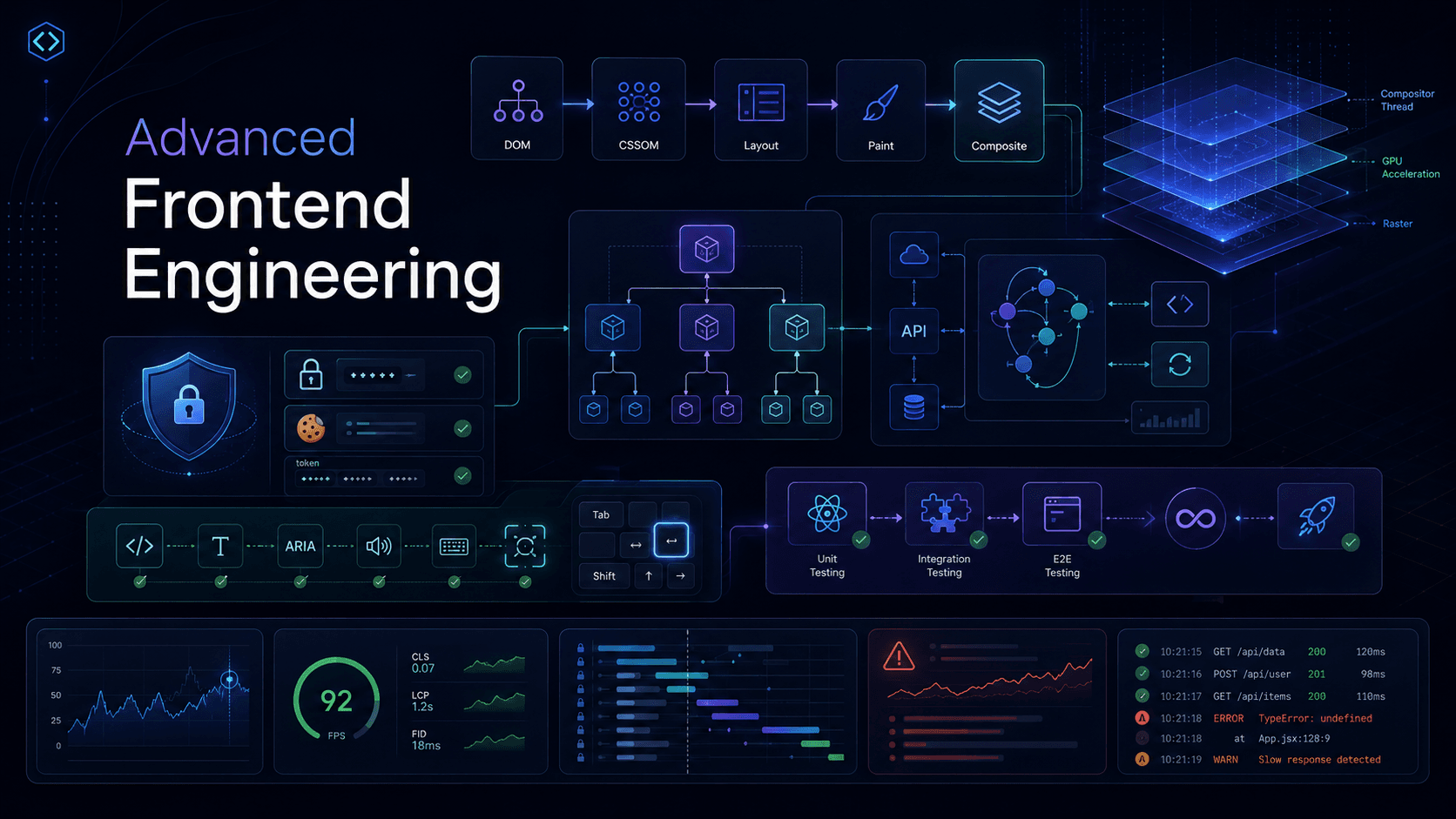
Advanced frontend engineering is not only about building components. A senior frontend engineer understands how browsers work, how large frontend systems are designed, how applications fail in production, how to secure user data, how to make interfaces accessible, and how to prove correctness through testing.
These topics are often underrated because they are not always visible in day-to-day UI tasks. But in interviews and real production work, they separate a normal frontend developer from a strong frontend engineer.
1. Browser Internals
Browser internals means understanding what the browser does after it receives HTML, CSS, JavaScript, images, fonts, and user interactions.
If you understand browser internals, you can debug slow rendering, layout shifts, blocking JavaScript, animation jank, and loading problems much more effectively.
Critical Rendering Path
The Critical Rendering Path is the sequence of steps the browser takes to convert HTML, CSS, and JavaScript into pixels on the screen.
Simplified flow:
HTML -> DOM
CSS -> CSSOM
DOM + CSSOM -> Render Tree
Render Tree -> Layout
Layout -> Paint
Paint -> Composite
The goal of frontend performance is often to shorten or optimize this path.
Critical resources usually include:
- HTML needed to discover the page structure.
- CSS needed to render above-the-fold content.
- JavaScript that blocks rendering or hydration.
- Fonts used by visible text.
- Images used by important visible content.
Senior engineer mindset: the browser cannot render what it has not downloaded, parsed, or calculated. If a resource blocks the critical path, it can delay what the user sees.
DOM
DOM means Document Object Model. It is the browser's tree representation of HTML.
Example HTML:
<main>
  <h1>Dashboard</h1>
  <button>Refresh</button>
</main>
The browser converts it into a tree:
main
├── h1
└── button
JavaScript can read and modify the DOM:
document.querySelector('button').textContent = 'Loading...';DOM operations can be expensive when they trigger layout or affect many nodes. React, Vue, and other frameworks reduce direct DOM manipulation, but the browser still eventually updates the real DOM.
CSSOM
CSSOM means CSS Object Model. It is the browser's tree representation of CSS rules.
Example CSS:
button {
  color: white;
  background: blue;
}
The browser parses this into CSSOM, then uses it with the DOM to know how each element should look.
CSS is render-blocking by default because the browser needs styles before it can correctly render the page. If the browser paints before CSS is ready, users may see unstyled content.
Render Tree
The render tree combines visible DOM nodes with CSSOM styles.
Important point: not every DOM node appears in the render tree.
Example:
.hidden {
  display: none;
}
Elements with display: none are in the DOM but not in the render tree. Elements with visibility: hidden still take layout space but are not visible.
Layout
Layout is the step where the browser calculates element size and position.
The browser answers questions like:
- How wide is this element?
- Where does it start?
- How tall is the text?
- Where does the next element go?
Layout can be expensive when:
- The DOM is very large.
- JavaScript repeatedly reads and writes layout.
- CSS depends on complex calculations.
- You animate layout-changing properties.
Bad pattern:
for (const item of items) {
  item.style.width = `${container.offsetWidth}px`;
}
This can repeatedly force layout calculation.
Better pattern:
const width = container.offsetWidth;

for (const item of items) {
  item.style.width = `${width}px`;
}
This reads layout once, then writes multiple times.
Paint
Paint is where the browser fills pixels for text, colors, borders, shadows, images, and backgrounds.
Paint can be expensive when:
- There are large visual areas.
- You use heavy shadows or filters.
- Many elements change visually.
- Large images or backgrounds repaint frequently.
Changing background-color or box-shadow can trigger paint. Changing layout properties can trigger layout and paint.
Composite
Compositing is where the browser combines painted layers into the final screen.
Some properties can be updated mostly at the compositor level without layout or paint.
Good animation properties:

.card {
  transform: translateY(20px);
  opacity: 0.8;
}


Usually expensive animation properties:

.card {
  top: 20px;
  width: 400px;
}
transform and opacity are usually better for smooth animations because they can often be handled by the compositor.
GPU Acceleration
GPU acceleration means using the graphics processor to handle compositing and some visual work.
You may see developers use:
.animated {
  will-change: transform;
}
will-change tells the browser that an element is likely to change, so the browser may prepare optimization ahead of time.
Do not apply will-change everywhere. It can increase memory usage because the browser may create extra layers.
Use it only for elements that actually animate or change frequently.
Reflow And Repaint
Reflow means layout recalculation. Repaint means visual pixel update.
Examples that can trigger reflow:
- Changing width or height.
- Adding or removing DOM elements.
- Changing font size.
- Reading layout after writing layout.
Examples that can trigger repaint:
- Changing color.
- Changing background.
- Changing box-shadow.
Examples that may only trigger composite:
- Changing transform.
- Changing opacity.
What Happens When You Enter A URL In The Browser?
This is a classic interview question.
High-level flow:
User enters URL
Browser checks cache
DNS lookup
TCP connection
TLS handshake for HTTPS
HTTP request sent
Server responds with HTML
Browser parses HTML
Browser discovers CSS, JS, images, fonts
Browser builds DOM and CSSOM
JavaScript may execute
Render tree is created
Layout, paint, composite happen
Page becomes interactive
More detailed explanation:
- The browser parses the URL and checks whether it already has cached data.
- If needed, it performs DNS lookup to convert the domain into an IP address.
- It opens a network connection. For HTTPS, it performs a TLS handshake.
- It sends an HTTP request to the server.
- The server returns HTML.
- The browser starts parsing HTML as it streams in.
- When it finds CSS, JavaScript, images, and fonts, it requests them.
- CSS blocks rendering because the browser needs styles to paint correctly.
- JavaScript can block HTML parsing unless it uses defer, async, or module behavior.
- The browser builds DOM and CSSOM, creates the render tree, calculates layout, paints, and composites layers.
- If the app is React with SSR, hydration attaches event handlers and makes the page interactive.
Real-World Implementation Advice
- Put critical CSS early.
- Use defer or type="module" for non-critical scripts.
- Avoid layout thrashing.
- Animate transform and opacity when possible.
- Avoid very large DOM trees.
- Use Chrome DevTools Performance panel to inspect layout, paint, and long tasks.
- Preload only truly critical resources.
- Do not lazy load above-the-fold LCP images.
Interview Questions And Answers: Browser Internals
Question: What is the Critical Rendering Path?
It is the sequence of browser steps that converts HTML, CSS, and JavaScript into pixels: DOM, CSSOM, render tree, layout, paint, and composite.
Question: What is the difference between DOM and CSSOM?
DOM represents HTML structure. CSSOM represents parsed CSS rules. The browser combines them to create the render tree.
Question: What is layout?
Layout is the browser step where element size and position are calculated.
Question: What is paint?
Paint is the step where the browser fills pixels for text, colors, borders, images, shadows, and backgrounds.
Question: What is compositing?
Compositing combines painted layers into the final screen. Some animations using transform or opacity can be handled efficiently at this stage.
Question: Why is animating transform better than animating top?
Changing top usually affects layout. Changing transform can often avoid layout and paint, making animation smoother.
Question: What happens after entering a URL?
The browser checks cache, resolves DNS, opens a connection, performs TLS for HTTPS, sends the request, receives HTML, parses resources, builds DOM and CSSOM, creates the render tree, performs layout, paint, and composite, then runs JavaScript and hydration as needed.
2. System Design For Frontend
Frontend system design is about designing client-side architecture for large applications. It includes component structure, state management, routing, data fetching, performance, security, accessibility, testing, and deployment.
In interviews, frontend system design questions test whether you can think beyond a single component.
How To Approach Frontend System Design
Use this structure:
Requirements -> Users -> Data -> Components -> State -> APIs -> Performance -> Security -> Accessibility -> Testing -> TradeoffsAlways clarify:
- Is it web only or mobile web too?
- How many users?
- Is real-time required?
- Is offline support required?
- Is SEO required?
- What are the most important user flows?
- What are the performance requirements?
Large Scale Architecture
A large frontend app should have clear boundaries.
Common structure:
src/
  app/
  pages/
  features/
  entities/
  shared/
  design-system/
  services/
  tests/
Good architecture principles:
- Keep feature code grouped by domain.
- Keep shared utilities truly shared.
- Avoid global state for everything.
- Separate server data from client UI state.
- Define API boundaries clearly.
- Avoid circular dependencies.
- Make performance and accessibility part of the design.
Bad architecture signs:
- Every component imports from everywhere.
- One huge global store controls the entire app.
- Business logic is scattered across UI components.
- Shared folder becomes a dumping ground.
- No clear ownership of features.
Monorepo
A monorepo stores multiple apps and packages in one repository.
Example:
apps/
  web/
  admin/
  docs/
packages/
  ui/
  config/
  utils/
  api-client/
Benefits:
- Shared code is easier to manage.
- Design system can be reused.
- Dependency versions can be consistent.
- Refactoring across packages is easier.
- CI can understand project relationships.
Challenges:
- Build complexity.
- Dependency boundaries.
- CI performance.
- Package versioning.
- Ownership and governance.
Common tools:
- Nx
- Turborepo
- pnpm workspaces
- Yarn workspaces
Senior engineer note: a monorepo is not automatically better. It is useful when multiple apps need shared packages, consistent tooling, and coordinated changes.
Micro Frontends
Micro frontends split a large frontend into independently owned and sometimes independently deployed parts.
Example:
Shell App
├── Search Team App
├── Checkout Team App
├── Profile Team App
└── Admin Team App
Benefits:
- Team independence.
- Independent deployment.
- Smaller ownership boundaries.
- Useful for very large organizations.
Tradeoffs:
- More runtime complexity.
- Shared dependency problems.
- Design inconsistency risk.
- Routing complexity.
- Performance overhead.
- Harder testing and debugging.
Implementation approaches:
- Module Federation.
- Build-time composition.
- Runtime composition.
- iframe-based isolation.
- Server-side composition.
Senior engineer rule: choose micro frontends because of organizational scaling needs, not because it sounds modern.
Design Systems
A design system is a set of reusable design decisions, components, tokens, patterns, and guidelines.
It usually includes:
- Colors.
- Typography.
- Spacing.
- Icons.
- Components.
- Accessibility rules.
- Interaction patterns.
- Documentation.
- Design tokens.
Design tokens example:
{
  "color": {
    "primary": "#2563eb",
    "danger": "#dc2626"
  },
  "space": {
    "sm": "8px",
    "md": "16px"
  }
}
A good design system improves consistency, speed, accessibility, and maintainability.
Component Libraries
A component library is the implementation layer of a design system.
Good component library characteristics:
- Accessible by default.
- Themeable.
- Well documented.
- Tested.
- Composable.
- Works across apps.
- Avoids unnecessary business logic.
Example component API:
<Button variant="primary" size="md" onClick={saveProfile}>
  Save
</Button>
Avoid over-flexible components that accept too many props. A component should solve a clear design-system problem.
State Architecture
State architecture is one of the most important frontend system design areas.
Types of state:
- Server state: data from APIs.
- Client UI state: modals, tabs, filters, local interactions.
- Form state: input values, validation, dirty state.
- URL state: route params, query params.
- Global app state: auth user, theme, feature flags.
- Derived state: calculated from existing state.
Recommended approach:
- Use URL for shareable navigation state.
- Use local state for component-specific UI state.
- Use server-state libraries for API data.
- Use global state only when many unrelated parts need the same state.
- Avoid duplicating server data in global stores.
Common tools:
- React state for local state.
- Context for dependency injection or low-frequency global values.
- Zustand, Redux Toolkit, Jotai, or similar for client state.
- TanStack Query, SWR, Relay, or Apollo for server state.
System Design Example: Facebook News Feed
Requirements:
- Show personalized posts.
- Infinite scrolling.
- Likes, comments, shares.
- Media support.
- Real-time or near-real-time updates.
- Ads and ranking.
- Good performance on mobile.
Frontend design:
- Use feed route with server-rendered or quickly loaded initial content.
- Use paginated API or cursor-based pagination.
- Virtualize feed items if DOM becomes too large.
- Lazy load comments and non-critical media.
- Use optimistic updates for likes.
- Use image optimization and responsive images.
- Use skeletons for loading states.
- Use error boundaries around feed sections.
- Track Core Web Vitals and interaction latency.
State:
- Server state for posts, comments, reactions.
- Local state for expanded comment boxes and UI controls.
- URL state for filters or deep links.
- Global state for auth user and feature flags.
Tradeoffs:
- Infinite scroll is smooth but can hurt accessibility and navigation.
- Real-time updates are engaging but can disrupt reading if inserted incorrectly.
- Optimistic updates improve UX but require rollback on failure.
System Design Example: Google Docs
Requirements:
- Collaborative document editing.
- Real-time presence.
- Conflict resolution.
- Offline or poor-network support.
- Comments and suggestions.
- Version history.
Frontend design:
- Use an editor engine or custom document model.
- Represent document as structured data, not just raw HTML.
- Use WebSocket or WebRTC-like real-time communication.
- Use Operational Transformation or CRDT for collaboration.
- Keep local edits responsive before server confirmation.
- Show presence cursors and collaborator status.
- Persist drafts locally for resilience.
- Use careful keyboard accessibility.
State:
- Local document state for immediate editing.
- Server synchronization state.
- Presence state.
- Comment state.
- Version history state.
Tradeoffs:
- CRDTs can simplify conflict handling but increase data complexity.
- Rich text editing is extremely complex; avoid building from scratch unless necessary.
- Offline support improves UX but increases sync complexity.
System Design Example: Chat Application
Requirements:
- Send and receive messages.
- Real-time updates.
- Typing indicators.
- Read receipts.
- Message history.
- Media attachments.
- Offline and reconnect behavior.
Frontend design:
- Use WebSocket for real-time messages.
- Use REST or GraphQL for initial history.
- Use cursor-based pagination for older messages.
- Virtualize message list.
- Keep scroll position stable when loading older messages.
- Use optimistic UI for sending messages.
- Retry failed messages.
- Show connection state.
State:
- Server state for message history.
- Real-time event state for incoming messages.
- Local pending state for unsent messages.
- UI state for selected conversation and composer.
Tradeoffs:
- WebSocket gives real-time UX but requires reconnect logic.
- Optimistic sending feels fast but needs failure handling.
- Virtualized chat lists require careful scroll restoration.
Interview Questions And Answers: System Design
Question: How do you approach a frontend system design interview?
Start with requirements and constraints. Define users, core flows, data model, component architecture, state architecture, API strategy, performance, accessibility, security, testing, and tradeoffs.
Question: When should you use a monorepo?
Use a monorepo when multiple apps share packages, tooling, design systems, or API clients and coordinated changes are valuable.
Question: When should you use micro frontends?
Use micro frontends when organizational scale requires independent ownership and deployment. Do not use them only for technical fashion because they add complexity.
Question: How would you design a news feed?
Use cursor pagination, optimized initial loading, lazy media, optimistic reactions, virtualized or carefully managed DOM, server-state caching, and monitoring for LCP and interaction performance.
Question: How would you design a chat app?
Use WebSocket for real-time events, API pagination for history, optimistic sending, retry behavior, virtualized message list, scroll management, and connection status handling.
Question: What is good state architecture?
Good state architecture separates server state, local UI state, form state, URL state, and global state. It avoids putting everything into one global store.
3. Frontend Security
Frontend security means protecting users from attacks that can steal data, perform actions without permission, inject malicious code, or abuse authentication.
Security is not only a backend responsibility. Frontend code controls forms, tokens, cookies, browser APIs, third-party scripts, and user input rendering.
XSS
XSS means Cross-Site Scripting. It happens when attackers inject malicious JavaScript into a page.
Example dangerous code:
<div dangerouslySetInnerHTML={{ __html: userGeneratedHtml }} />If userGeneratedHtml contains a script or malicious attribute, the browser may execute it.
Types of XSS:
- Stored XSS: malicious content is saved on the server.
- Reflected XSS: malicious content comes from URL or request and is reflected in the response.
- DOM-based XSS: frontend JavaScript creates the vulnerability in the browser.
Prevention:
- Escape user-generated content.
- Avoid dangerouslySetInnerHTML unless absolutely necessary.
- Sanitize HTML with a trusted library when rendering rich text.
- Use Content Security Policy.
- Validate and encode data on both frontend and backend.
- Avoid inline scripts.
CSRF
CSRF means Cross-Site Request Forgery. It tricks an authenticated user's browser into making an unwanted request.
Example:
- User is logged into bank.com.
- User visits malicious site.
- Malicious site submits a request to bank.com.
- Browser automatically includes cookies.
Prevention:
- Use SameSite cookies.
- Use CSRF tokens for state-changing requests.
- Require proper authentication headers.
- Avoid using GET requests for mutations.
Cookie example:
Set-Cookie: session=abc; HttpOnly; Secure; SameSite=LaxCORS
CORS means Cross-Origin Resource Sharing. It is a browser security mechanism that controls whether frontend JavaScript from one origin can read responses from another origin.
Origin includes:
scheme + host + port
Example:
https://app.example.com
https://api.example.com
These are different origins.
CORS is enforced by browsers. It does not protect your API from server-to-server requests. It controls browser access to responses.
Bad configuration:
Access-Control-Allow-Origin: *
Access-Control-Allow-Credentials: true
This combination is invalid and unsafe.
Better:
Access-Control-Allow-Origin: https://app.example.com
Access-Control-Allow-Credentials: true
CSP
CSP means Content Security Policy. It restricts what scripts, styles, images, frames, and connections a page can load.
Example:
Content-Security-Policy: default-src 'self'; script-src 'self'; object-src 'none'; frame-ancestors 'none'CSP helps reduce XSS impact by blocking unauthorized scripts.
Useful directives:
- default-src
- script-src
- style-src
- img-src
- connect-src
- frame-ancestors
- object-src
Senior engineer note: CSP is powerful but can break apps if introduced carelessly. Start with report-only mode, inspect violations, then enforce.
JWT Security
JWT means JSON Web Token. It is often used for authentication or authorization.
A JWT usually has:
header.payload.signature
Important rules:
- Do not store sensitive secrets inside JWT payload.
- JWT payload is encoded, not encrypted.
- Validate signature on the server.
- Keep access token lifetime short.
- Rotate refresh tokens when possible.
- Handle logout and token revocation carefully.
Storage tradeoff:
- localStorage is vulnerable to token theft if XSS happens.
- HttpOnly cookies cannot be read by JavaScript but need CSRF protection.
Common recommendation for sensitive apps:
- Store refresh token in HttpOnly, Secure, SameSite cookie.
- Keep access token short-lived.
- Use backend-controlled refresh flow.
Cookie Security
Important cookie attributes:
HttpOnly
Secure
SameSite
Path
Domain
Expires / Max-Age
Meaning:
- HttpOnly: JavaScript cannot read the cookie.
- Secure: cookie is only sent over HTTPS.
- SameSite: controls cross-site cookie sending.
- Path: limits cookie path.
- Domain: controls cookie domain scope.
Good session cookie:
Set-Cookie: session=abc; HttpOnly; Secure; SameSite=Lax; Path=/
Authentication Flow
Common login flow:
User submits credentials
Server validates credentials
Server creates session or tokens
Browser stores session cookie or token
Frontend requests protected data
Server validates session or token
Frontend renders authenticated UI
Secure authentication concerns:
- Token storage.
- Refresh flow.
- Logout.
- Session expiration.
- Multi-tab behavior.
- CSRF protection.
- XSS protection.
- Redirect safety.
- MFA support.
Frontend route protection is not enough. Backend must protect APIs. Frontend route guards are for user experience, not real security.
Interview Questions And Answers: Security
Question: What is XSS?
XSS is an attack where malicious JavaScript is injected into a page and executed in a user's browser.
Question: How do you prevent XSS in React?
React escapes text by default. Avoid dangerouslySetInnerHTML, sanitize rich HTML, use CSP, and never trust user input.
Question: What is CSRF?
CSRF tricks an authenticated browser into making unwanted requests using automatically included cookies.
Question: How do you prevent CSRF?
Use SameSite cookies, CSRF tokens, proper HTTP methods, and server-side validation.
Question: What is CORS?
CORS is a browser mechanism that controls whether JavaScript from one origin can read responses from another origin.
Question: Should JWT be stored in localStorage?
It depends, but for sensitive apps it is risky because XSS can steal localStorage tokens. HttpOnly cookies are often safer for refresh tokens, combined with CSRF protection.
Question: Is frontend route protection real security?
No. It improves UX, but backend APIs must enforce authentication and authorization.
4. Accessibility
Accessibility means building applications that people with different abilities can use. It includes keyboard users, screen reader users, people with low vision, motor disabilities, cognitive differences, and temporary impairments.
Accessibility is not optional in serious frontend engineering. It improves usability for everyone and is required by many companies and laws.
Semantic HTML
Semantic HTML means using elements according to their meaning.
Good:
<button type="button">Open menu</button>Bad:
<div onclick="openMenu()">Open menu</div>Semantic elements provide built-in accessibility:
- Keyboard behavior.
- Screen reader meaning.
- Focus behavior.
- Browser defaults.
Useful semantic elements:
- header
- nav
- main
- section
- article
- footer
- button
- label
- input
- select
- textarea
ARIA
ARIA means Accessible Rich Internet Applications. It adds accessibility semantics when native HTML is not enough.
Example:
<button aria-expanded="false" aria-controls="menu">
  Menu
</button>
Important rule:
Use native HTML first. Use ARIA only when needed.
Bad ARIA can make accessibility worse.
Common ARIA attributes:
- aria-label
- aria-labelledby
- aria-describedby
- aria-expanded
- aria-controls
- aria-live
- aria-hidden
- role
Screen Readers
Screen readers read page content and controls to users.
Common screen readers:
- NVDA
- JAWS
- VoiceOver
- TalkBack
Screen reader-friendly UI requires:
- Semantic HTML.
- Proper labels.
- Logical heading structure.
- Useful alt text.
- Announcements for dynamic changes.
- No hidden focus traps.
Example live region:
<div aria-live="polite">Profile saved successfully</div>Keyboard Navigation
Many users navigate without a mouse.
Keyboard requirements:
- Interactive elements must be reachable with Tab.
- Focus order should be logical.
- Focus indicator should be visible.
- Buttons should work with Enter or Space.
- Escape should close dialogs or menus when appropriate.
- Modals should trap focus while open.
Do not remove focus outlines without replacing them:
button:focus-visible {
  outline: 2px solid #2563eb;
  outline-offset: 2px;
}
WCAG
WCAG means Web Content Accessibility Guidelines.
The four main principles are POUR:
- Perceivable: users can perceive the information.
- Operable: users can operate the interface.
- Understandable: users can understand the UI.
- Robust: content works with assistive technologies.
Common WCAG concerns:
- Color contrast.
- Keyboard access.
- Text alternatives.
- Labels and instructions.
- Error messages.
- Focus management.
- Motion sensitivity.
Forms Accessibility
Good form:
<label for="email">Email</label>
<input id="email" name="email" type="email" autocomplete="email" />
Error example:
<label for="password">Password</label>
<input id="password" type="password" aria-invalid="true" aria-describedby="password-error" />
<p id="password-error">Password must be at least 8 characters.</p>
Modal Accessibility
A good modal should:
- Move focus into the modal when opened.
- Trap focus inside the modal.
- Restore focus to the trigger when closed.
- Close with Escape when appropriate.
- Have an accessible name.
- Prevent background content from being read or focused.
Example:
<div role="dialog" aria-modal="true" aria-labelledby="dialog-title">
  <h2 id="dialog-title">Delete account</h2>
  <p>This action cannot be undone.</p>
  <button>Cancel</button>
  <button>Delete</button>
</div>
Accessibility Checklist
- Use semantic HTML first.
- Every input has a label.
- Buttons are real buttons.
- Links are real links.
- Images have meaningful alt text or empty alt for decorative images.
- Keyboard navigation works.
- Focus styles are visible.
- Modals manage focus correctly.
- Color contrast is sufficient.
- Dynamic updates are announced when needed.
- Test with screen readers and automated tools.
Interview Questions And Answers: Accessibility
Question: What is accessibility?
Accessibility means making applications usable by people with different abilities, including keyboard users, screen reader users, and people with visual, motor, or cognitive disabilities.
Question: What is semantic HTML and why does it matter?
Semantic HTML uses elements according to their meaning. It provides built-in accessibility, keyboard behavior, and better screen reader support.
Question: What is ARIA?
ARIA adds accessibility semantics for complex UI patterns when native HTML is not enough. It should be used carefully because incorrect ARIA can harm accessibility.
Question: How do you make a modal accessible?
Move focus into the modal, trap focus inside it, restore focus on close, provide an accessible name, use aria-modal, and support Escape when appropriate.
Question: What is WCAG?
WCAG is a set of accessibility guidelines based on four principles: perceivable, operable, understandable, and robust.
5. Testing
Testing verifies that the application behaves correctly and protects against regressions.
A senior frontend engineer does not test implementation details. They test behavior, user flows, edge cases, and integration points.
Testing Pyramid For Frontend
Common testing layers:
Unit tests -> Integration tests -> E2E tests
Unit tests are fast and focused. Integration tests check how multiple pieces work together. E2E tests verify real user flows in a browser.
Use a balanced strategy. Too many E2E tests can be slow and flaky. Too many unit tests can miss real behavior.
Unit Testing
Unit tests verify small isolated pieces.
Good candidates:
- Utility functions.
- Reducers.
- Formatters.
- Validation logic.
- Pure business logic.
Example:
function formatPrice(value: number) {
  return `$${value.toFixed(2)}`;
}
Test:
expect(formatPrice(10)).toBe('$10.00');Unit tests should be fast, deterministic, and easy to understand.
Integration Testing
Integration tests verify multiple parts working together.
Example:
- User fills a form.
- Validation appears.
- Submit button sends API request.
- Success message appears.
React Testing Library is commonly used for integration-style component tests because it encourages testing from the user's perspective.
Example:
render(<LoginForm />);

await user.type(screen.getByLabelText(/email/i), 'user@example.com');
await user.type(screen.getByLabelText(/password/i), 'password123');
await user.click(screen.getByRole('button', { name: /log in/i }));

expect(await screen.findByText(/welcome/i)).toBeInTheDocument();
E2E Testing
E2E tests run in a real browser and verify complete flows.
Good E2E flows:
- Signup.
- Login.
- Checkout.
- Create/edit/delete important resource.
- Critical dashboard workflow.
Playwright example:
test('user can log in', async ({ page }) => {
  await page.goto('/login');
  await page.getByLabel('Email').fill('user@example.com');
  await page.getByLabel('Password').fill('password123');
  await page.getByRole('button', { name: 'Log in' }).click();
  await expect(page.getByText('Dashboard')).toBeVisible();
});
E2E tests are valuable but should be limited to critical flows because they are slower and more expensive to maintain.
Jest
Jest is a JavaScript testing framework commonly used for unit and component tests.
It provides:
- Test runner.
- Assertions.
- Mocking.
- Snapshot testing.
- Coverage reporting.
Snapshot tests should be used carefully. They often become noisy and do not always prove behavior.
React Testing Library
React Testing Library encourages testing UI the way users interact with it.
Preferred queries:
- getByRole
- getByLabelText
- getByText
- getByPlaceholderText
Avoid testing implementation details:
- Component state internals.
- Private functions.
- CSS class names unless styling behavior is the point.
- Exact component hierarchy.
Good test mindset:
The user clicks this button. What should they see?
Playwright
Playwright is a browser automation tool for E2E testing.
Strengths:
- Runs real browsers.
- Supports Chromium, Firefox, and WebKit.
- Good auto-waiting.
- Network mocking.
- Screenshots and traces.
- Useful debugging tools.
Use Playwright for high-value flows, not every tiny component state.
Mocking APIs
Mock APIs when tests need stable behavior.
Options:
- Mock Service Worker.
- Playwright route interception.
- Jest mocks for lower-level modules.
- Test backend environment.
Mock Service Worker is useful because it intercepts network requests at the network layer, making tests closer to real behavior.
Testing Checklist
- Unit test pure logic.
- Integration test important component behavior.
- E2E test critical user flows.
- Test accessibility where possible.
- Mock network behavior realistically.
- Avoid implementation-detail tests.
- Run tests in CI.
- Keep tests deterministic.
- Fix flaky tests instead of ignoring them.
Interview Questions And Answers: Testing
Question: What is the difference between unit, integration, and E2E testing?
Unit tests check small isolated logic. Integration tests check multiple parts working together. E2E tests verify full user flows in a browser.
Question: What should you test in React Testing Library?
Test user-visible behavior: what users click, type, see, and experience. Avoid testing internal state or implementation details.
Question: When should you use Playwright?
Use Playwright for critical end-to-end flows like login, checkout, signup, and important product workflows.
Question: Why can too many E2E tests be a problem?
They are slower, more expensive to maintain, and more likely to be flaky than unit or integration tests.
Question: What is a flaky test?
A flaky test sometimes passes and sometimes fails without code changes. It usually indicates timing issues, unstable data, poor isolation, or unreliable dependencies.
6. Monitoring And Debugging
Monitoring and debugging are about understanding what happens in development and production.
Production issues are different from local issues because they involve real users, real devices, real networks, third-party scripts, deployments, and data.
Chrome DevTools
Chrome DevTools is one of the most important tools for frontend engineers.
Important panels:
- Elements: inspect DOM and CSS.
- Console: inspect logs and runtime errors.
- Network: inspect requests, responses, caching, waterfalls.
- Performance: profile runtime performance, layout, paint, long tasks.
- Memory: debug memory leaks.
- Application: inspect storage, cookies, cache, service workers.
- Coverage: find unused JavaScript and CSS.
Debugging workflow:
- Reproduce the issue.
- Observe errors and network requests.
- Inspect DOM and state.
- Profile if it is slow.
- Check storage and cookies if auth is involved.
- Verify the fix.
React DevTools
React DevTools helps inspect React component trees.
Use it to:
- Inspect props and state.
- Understand component hierarchy.
- Profile renders.
- Find unnecessary re-renders.
- See why components updated in profiler mode.
React Profiler is especially useful for rendering performance issues.
Lighthouse
Lighthouse audits pages for:
- Performance.
- Accessibility.
- Best practices.
- SEO.
- Progressive Web App behavior.
Lighthouse is useful, but it is lab data. Real user performance can be different.
Use Lighthouse to find obvious problems, then confirm important issues with field data and deeper profiling.
Sentry
Sentry is a production monitoring tool for errors and performance.
It can track:
- JavaScript errors.
- Stack traces.
- Source-mapped production errors.
- User sessions.
- Releases.
- Performance traces.
- Failed transactions.
Important Sentry setup:
- Upload source maps securely.
- Tag releases and environments.
- Capture user context carefully without leaking sensitive data.
- Use error boundaries in React.
- Track important performance transactions.
- Group and prioritize issues.
React error boundary example:
class ErrorBoundary extends React.Component {
  state = { hasError: false };

  static getDerivedStateFromError() {
    return { hasError: true };
  }

  componentDidCatch(error, info) {
    reportError(error, info);
  }

  render() {
    if (this.state.hasError) {
      return <p>Something went wrong.</p>;
    }

    return this.props.children;
  }
}
Performance Profiling
Performance profiling means recording what the browser or React app does during a slow interaction.
Use Chrome Performance panel for:
- Long tasks.
- JavaScript execution.
- Layout cost.
- Paint cost.
- Network timing.
- Main-thread blocking.
Use React Profiler for:
- Slow components.
- Re-render causes.
- Commit duration.
- Expensive component trees.
Profiling process:
- Record the slow action.
- Find long tasks or slow commits.
- Identify the root cause.
- Make a small fix.
- Record again and compare.
Source Maps
Production JavaScript is usually minified. Source maps map minified code back to original source files.
Without source maps, production errors may look like:
TypeError at app.a82f1.js:1:23892
With source maps, you can see the original file and line.
Security note: upload source maps to monitoring tools privately. Do not always expose them publicly unless your team accepts that risk.
Production Debugging Workflow
Use this process:
Detect -> Triage -> Reproduce -> Isolate -> Fix -> Verify -> MonitorDetails:
- Detect through Sentry, logs, metrics, support tickets, or monitoring alerts.
- Triage severity based on user impact.
- Reproduce locally, in staging, or with production-like data.
- Isolate the failing component, request, state, or browser condition.
- Fix the smallest root cause.
- Verify with tests and manual reproduction.
- Monitor after deployment.
Monitoring Checklist
- Capture frontend errors.
- Upload source maps.
- Track releases.
- Use error boundaries.
- Monitor Core Web Vitals.
- Track API failure impact.
- Profile slow interactions.
- Avoid logging sensitive user data.
- Create alerts for serious regressions.
Interview Questions And Answers: Monitoring And Debugging
Question: How do you debug a production frontend error?
Start with monitoring data, stack traces, release version, user impact, browser/device info, and reproduction steps. Use source maps, reproduce the issue, isolate the root cause, fix, verify, and monitor after release.
Question: What is Chrome DevTools Performance panel used for?
It records runtime activity such as JavaScript execution, layout, paint, long tasks, and main-thread blocking.
Question: What is React Profiler used for?
It helps identify slow renders, expensive component trees, and unnecessary re-renders.
Question: Why are source maps important?
They map minified production code back to original source code, making production errors understandable.
Question: What is the difference between Lighthouse and Sentry?
Lighthouse is mainly a lab auditing tool. Sentry monitors real production errors and performance issues from users.
7. Senior Frontend Engineer Mental Models
Browser Mental Model
Every UI change eventually affects the browser pipeline. Think about DOM size, layout, paint, compositing, and JavaScript main-thread cost.
Architecture Mental Model
Architecture should reduce complexity, not create it. Choose monorepos, micro frontends, state libraries, and design systems because they solve real team and product problems.
Security Mental Model
Never trust user input. Frontend route guards are not security. Token storage has tradeoffs. XSS can break many other security assumptions.
Accessibility Mental Model
Accessibility starts with semantic HTML. If you use a custom component, you inherit responsibility for keyboard, focus, screen reader, and state behavior.
Testing Mental Model
Test behavior, not implementation. The best tests give confidence without making refactoring painful.
Debugging Mental Model
Do not guess. Reproduce, measure, inspect, isolate, fix, verify, and monitor.
8. Final Production Checklist
Browser Internals
- Critical resources identified.
- CSS and JS blocking behavior understood.
- Layout thrashing avoided.
- Animations use compositor-friendly properties.
- Large DOM trees avoided.
System Design
- Requirements clarified.
- State types separated.
- Components organized by domain.
- API and data-fetching strategy defined.
- Performance, security, accessibility, and testing included in design.
Security
- XSS risks controlled.
- CSRF protection in place when cookies are used.
- CORS configured safely.
- CSP considered.
- Tokens stored with clear tradeoff awareness.
- Cookies use HttpOnly, Secure, and SameSite where appropriate.
Accessibility
- Semantic HTML used.
- Keyboard navigation works.
- Focus states visible.
- Forms are labeled.
- Modals manage focus.
- Color contrast checked.
- Screen reader behavior tested for critical flows.
Testing
- Unit tests cover pure logic.
- Integration tests cover important UI behavior.
- E2E tests cover critical flows.
- API mocking is realistic.
- Tests run in CI.
- Flaky tests are fixed.
Monitoring
- Frontend errors captured.
- Source maps uploaded securely.
- Releases tracked.
- Performance metrics monitored.
- Error boundaries used.
- Production debugging workflow exists.
Final Advice
To become strong in advanced frontend engineering, do not learn these topics as isolated theory.
Connect them to real work:
- Browser internals help you understand performance.
- System design helps you scale applications and teams.
- Security protects users and business.
- Accessibility makes products usable by more people.
- Testing protects behavior.
- Monitoring tells you what actually happens in production.
For interviews, explain every topic with this structure:
Definition -> Why it matters -> Real example -> Tradeoffs -> How to implement -> How to debug
For real production work, use this rule:
Understand the system. Make the smallest correct improvement. Verify with evidence.